The WordPress Gutenberg editor is the default block editor in WordPress. You build every page and post from individual blocks, and since WordPress 7.1 those blocks also handle responsive styling, reusable patterns, and site-wide design controls. WordPress is used by 39.6% of all websites, according to W3Techs (October 2026), so how this editor behaves touches a very large part of the web.
This guide shows how Gutenberg works, what changed in WordPress 7.0 and 7.1, how to build a page step by step, and how it compares with Elementor and other page builders. I’ll also point out where Gutenberg still falls short, so you can decide with real information.
What Is the WordPress Gutenberg Editor?
Gutenberg is the project name. The block editor is the product you use every day. It replaced the old TinyMCE-based classic editor when WordPress 5.0 shipped in December 2018, and it has been the default ever since. Your content is split into blocks. A paragraph is a block. So is a heading, an image, a button, a table, or a whole layout section.
Here’s the part people mix up. Gutenberg is not a plugin you install to get the editor. The editor is already inside WordPress core. A separate Gutenberg plugin does exist, and it works as a testing ground. New features land there first, then move into core a few months later. WordPress 7.1, for example, bundles features from Gutenberg plugin versions 22.7 through 23.6, as the WordPress 7.1 overview from Gutenberg Times lays out.
Under the hood, the editor is a JavaScript app built on React. It saves your content as plain HTML in the database, with small comment markers that tell WordPress where each block starts and ends. That keeps core-block content portable if you ever change themes.
Gutenberg is not something you add to WordPress. It’s the editor WordPress already gives you. Use it if you publish regularly, care about speed, and are comfortable with structured layouts. Think blogs, business sites, publishers, and most marketing sites. If your designers need pixel-level freedom on every page, read the Elementor section before you decide.
How Does the Gutenberg Block Editor Work?
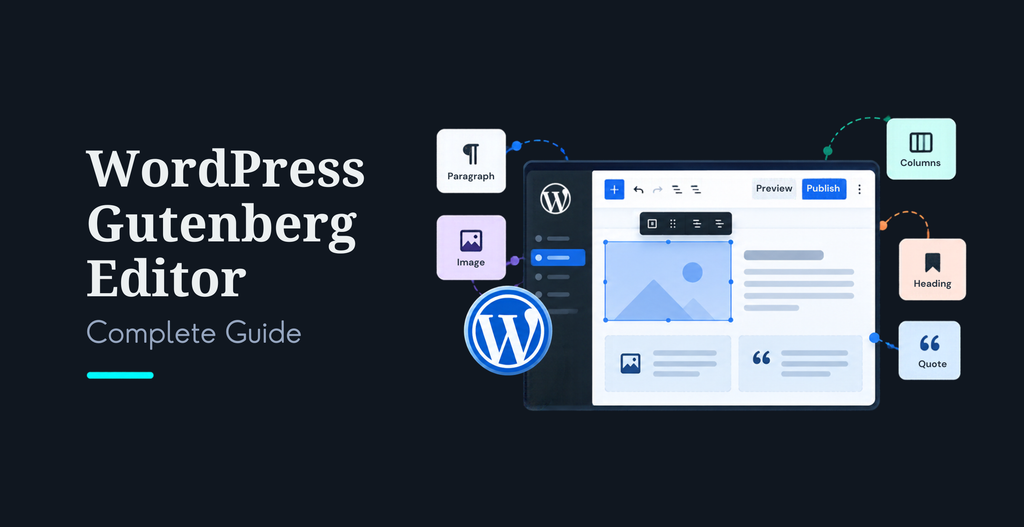
Open any page in WordPress and you land on the editing canvas. Four areas do most of the work.
Block inserter. The plus icon at the top left. You can also type a slash on an empty line and search by block name.
Block toolbar. It floats above the selected block for quick formatting, links, and alignment.
Settings sidebar. Document settings like status, featured image, and categories live here, along with block settings. Many blocks split these into Content, Settings, and Styles tabs.
List View. An outline of every block on the page. It’s the fastest way to fix nested layouts.
There’s also the command palette, which lets you search any action by name. In WordPress 7.1 its shortcut lives in the admin bar, and results are grouped into recent, suggested, and matching. Two keyboard shortcuts earn their keep: the slash for inserting blocks, and Ctrl+Shift+D (Cmd+Shift+D on Mac) to duplicate the selected block. For the full list, open the options menu and choose Keyboard shortcuts.
What’s New in Gutenberg in 2026?
Two major WordPress releases shipped this year, and both changed the editor. As of October 23, 2026, WordPress 7.1.3 is the latest stable release. It came out October 6 as a security release with seven fixes, and the official release notes recommend updating right away. WordPress 7.2 Beta 1 arrived October 20, with the final release scheduled for December 8, per the WordPress developer news. Beta builds belong on test sites only.
WordPress 7.0 (May 20, 2026)
WordPress 7.0 launched May 20, after the team moved it from its April 9 target. The headline feature, real-time collaboration, waspulled on May 8 and did not ship. What did ship matters more day to day.
Feature
What it does for editors
Visual revisions
Compare versions inside the editor, with color-coded additions, deletions, and changes, plus a timeline slider.
Notes upgrades
Block-level comments sync across sessions, support multiple blocks and partial selections, and send email notifications.
Content-only pattern editing
Patterns open in a simplified mode. Detach one to edit every block inside it.
Navigation overlays
Design the mobile menu in the Site Editor.
Viewport block visibility
Show or hide any block on desktop, tablet, or mobile.
New blocks
Breadcrumbs and Icon.
Fonts page
Manage fonts under Appearance, for block and classic themes alike.
AI Client and Connectors
Plumbing for AI providers. Covered in its own section below.
WordPress 7.1 (August 19, 2026)
WordPress 7.1 answers one of the most requested improvements in the block editor: responsive design. The full list sits in the official WordPress 7.1 Field Guide.
Feature
What it does for editors
Responsive styles
Style a block differently on three screen sizes inside the editor, no custom CSS. Styles cascade from desktop down.
Interactive states
Hover, focus, and active styling. In Global Styles, the controls ship for the Button block first.
Tabs and Playlist blocks
Two new core blocks. Tabs follows the W3C ARIA tabs pattern.
Media editor modal
Free-form crop, flip, rotation, and metadata editing in one place.
Client-side media processing
Your browser creates the image sizes, with support for HEIC, AVIF, and WebP.
Inline notes
Attach a note to the selected text. Add @mentions and rich formatting.
Identity screen
Logo, favicon, title, and tagline in one spot under Appearance, then Editor.
Always-on iframe
The post editor now always loads in an iframe, which matters for older plugins.
What didn’t ship
Real-time co-editing is still not in core, so two people can’t type in the same post at once. Notes are asynchronous. You leave comments. You don’t co-edit live. And core has no built-in AI writing assistant, which I cover below. WordPress 7.0 made editing safer for teams, WordPress 7.1 made responsive design a built-in part of block editing, and neither added live co-editing.
How to Use the Gutenberg Editor Step by Step
This walkthrough builds a simple service page. You can finish it in one sitting.
How to Create Your First Page Using Gutenberg
Go to Pages, then Add New. Type the page name in the title field. Most themes render it as the H1.
Click the plus icon, or type a slash on a new line. Start with a Heading block for your first H2.
Add a Paragraph block and write your intro. Use the toolbar for bold, italics, and links.
Build the layout. Wrap related content in a Group block. Use Row to line items up, Stack to pile them up, and Columns for text beside an image. The Grid block, updated in 7.0, scales down on its own when you set both a column count and a minimum width.
Add media. Drop in an Image block, then use Crop to open the media editor modal from 7.1. Paste a YouTube URL on an empty line and WordPress turns it into an Embed block.
Add a Button block and set its link. Use a Table block for pricing or specs.
Preview every screen size. In 7.1, open the View menu to turn on responsive styles, then adjust spacing or type size for tablet and mobile only.
Open List View to check heading order and nesting, then run the checks below and click Publish.
What to Check Before You Hit Publish
Check
What to look for
Accessibility
Logical heading order, alt text on every informative image, and the new Mark as decorative toggle for flourishes.
Mobile
Preview desktop, tablet, and mobile. Fix tight spacing and oversized type.
SEO
One H1, descriptive H2s, a meta title and description from your SEO plugin, and internal links in the body.
Performance
Compress images before upload and test the page in PageSpeed Insights.
What Are Gutenberg Block Patterns?
A block pattern is a saved arrangement of blocks you can drop into any page. Patterns come from WordPress core, your theme, plugins, the WordPress.org pattern directory, and your own saved designs. They come in two types, and picking the wrong one is an easy mistake.
Synced pattern
Unsynced pattern
Edit once, change everywhere?
Yes
No, edits stay local
Best for
Sitewide banners, calls to action, contact details
Layouts you customize each time
Where you edit
Pattern management screen
Directly in the page or post
Older name
Reusable block, renamed in WordPress 6.3
Standard pattern
The Learn WordPress pattern tutorial walks through both types. Patterns your theme registers are always unsynced, and you create synced ones yourself.
There’s a middle option.Pattern Overrideskeep a layout synced while letting each instance change chosen fields, such as a heading, text, button, or image. WordPress 7.0 widened that to any block attribute that supports Block Bindings. It also changed pattern editing, so patterns now open in content-only mode and you detach one when you need full control.
Ask one question before you save a pattern: if I change this next month, should every page change with it? Yes means synced. No means unsynced. We call this the Edit-Once or Edit-Each test. A free-shipping banner passes as synced. A three-column testimonial layout passes as unsynced.
How to Customize Your Website with the Site Editor
The Site Editor is Gutenberg pointed at your whole site instead of one page. You open it from Appearance, then Editor, and it needs a block theme. Classic themes don’t have it. This replaces the Full Site Editing idea from WordPress 5.8, which was still experimental back then. Today it’s a normal part of WordPress.
Post and page editor
Site Editor
What you edit
One page or post
Templates, template parts, patterns, navigation, global styles, site identity
Where to find it
Pages or Posts, then Edit
Appearance, then Editor
Best for
Writing and page layouts
Headers, footers, archives, and sitewide design
Needs a block theme?
No
Yes
Most beginner confusion about where to make a change disappears with a simple model. Blocks make up patterns. Patterns fill template parts like headers and footers. Template parts sit inside templates, such as the single post or archive template. Global Styles sit over everything and set colors, type, and spacing for the whole site. We call it the Block-Pattern-Template ladder. Start at the lowest rung that fixes your problem.
Recent releases added more control. WordPress 7.0 brought navigation overlays and the dedicated Fonts page. WordPress 7.1 added the Identity screen and a review panel for Apply Globally, so you can pick which local style changes become global. Developers can now define custom breakpoints in theme.json, so responsive styling follows the design system. See theresponsive styles dev note for the code.
Gutenberg vs. Classic Editor: What’s the Difference?
Area
Classic Editor
Gutenberg
Content model
One TinyMCE text field
Individual blocks
Area
Classic Editor
Gutenberg
Layout
Limited, usually shortcodes, HTML, or a page builder
Group, Row, Stack, Columns, and Grid
Reuse
Copy and paste, or shortcodes
Synced and unsynced patterns
Sitewide editing
Customizer and theme files
Site Editor on block themes
Team review
Outside the editor
Notes and visual revisions
Responsive control
Theme CSS
Built-in responsive styles from WordPress 7.1
Extending
Shortcodes and meta boxes
Custom blocks and Block Bindings
The Classic Editor edits text. Gutenberg edits structure. If you have years of shortcode content, 7.1 helps with cleanup. Pasting or converting an embed shortcode now creates a proper Embed block, and the Shortcode block offers transforms into matching blocks when it recognizes the shortcode.
Gutenberg vs. Elementor and Other Page Builders
W3Techs shows the real picture. On October 23, 2026,Elementor ran on 31.5% of WordPress sites, WPBakery on 7.3%, and Beaver Builder on 1.0%. Elementor is the true alternative. The rest are small.
Gutenberg
Elementor
Beaver Builder and WPBakery
Cost
Free, built into WordPress
Free tier plus paid Pro. Check elementor.com for current pricing
Paid plans, with a limited free Beaver Builder version
Design control
Structured, improving fast in 7.x
Very high, near pixel-level
High, varies by tool
Moderate, gentler for writers
Easy to start, deep for advanced use
Moderate
Typically the leanest markup
Heavier, depends on widgets and settings
Varies. WPBakery stores layouts as shortcodes
Low, content stays as standard blocks
Higher, layouts live in builder data
Higher, shortcode content can break when deactivated
Is Gutenberg better than Elementor for SEO? Neither editor ranks a page by itself. Gutenberg usually outputs leaner markup, which helps Core Web Vitals. A well-built Elementor site can pass them too. Hosting, image weight, and plugins move the numbers more than the editor does. Run your own pages through PageSpeed Insights instead of trusting generic percentage claims.
To choose, ask three questions. Who edits after launch? How different is each page layout? What’s the performance budget? Writers editing standard layouts under tight speed targets point to Gutenberg. A design team shipping bespoke landing pages points to Elementor. We call this the Three-Question Editor Test. You can also mix them, with Gutenberg for posts and Elementor for landing pages, as long as you watch page weight. Our full Gutenberg vs. Elementor comparison goes deeper.
What Are the Benefits and Limitations of Gutenberg?
Gutenberg is free, built in, and updated with every WordPress release. Its markup is clean, and accessibility keeps improving. The new Tabs block follows the W3C ARIA tabs pattern, and the Image block now has a Mark as decorative toggle for screen readers.
It isn’t finished, though. Responsive styles in 7.1 are a first version. Viewport-specific values work for block sidebar settings like typography, spacing, and colors, not everything. Interactive states in Global Styles start with the Button block. Live co-editing is missing. Very custom layouts still need custom blocks or code.
Limitation
Practical workaround
Responsive styles are version one
Use theme.json or a small amount of custom CSS for what the sidebar can’t reach.
Interactive states beyond Button
Set them in theme.json until the editor controls expand.
No live co-editing
Use Notes and visual revisions, and agree an editing order.
Complex custom layouts
Build a custom block or a locked pattern with a developer.
Older plugins and blocks
Test on staging and check the Block API version.
If you hit a wall, a developer who works with blocks daily can save weeks. You can hire a WordPress developer from our team for that part.
How Does Gutenberg Affect SEO and Performance?
Gutenberg gives you real heading blocks, lists, tables, and native alt text fields. Those are the pieces search engines and AI systems read. Keep your heading order clean: one H1, then H2s, then H3s. Image handling changed too. In 7.1, your browser creates the image sizes, which cuts server work, and it supports HEIC, AVIF, and WebP.
For speed, WordPress has used speculative loading since 6.8, and 7.1 lets hosts tune its defaults. Google’s Core Web Vitals targets are an LCP under 2.5 seconds, INP under 200 milliseconds, and CLS under 0.1. The editor doesn’t decide your Core Web Vitals. Your theme, images, plugins, and hosting do.
One more point on structured data. Gutenberg doesn’t add schema on its own. Use your SEO plugin or custom code for Article, FAQPage, and BreadcrumbList markup, and have atechnical SEO teamvalidate it.
Does WordPress Gutenberg Have AI Features?
Not in the way most people expect. WordPress 7.0 added the plumbing for AI, not a built-in writing assistant. Two pieces matter. The AI Client gives plugins one PHP entry point, wp_ai_client_prompt(), for text, image, speech, and video generation. The Connectors screen is where you add credentials for providers. Official provider plugins cover Anthropic, Google, and OpenAI.
The visible features, like title, excerpt, and alt text generation, come from the AI Experiments plugin. WordPress 7.1 added username and application password authentication to Connectors and new filters to the Abilities API for developers. WordPress core ships the AI connection layer. The AI features themselves come from plugins.
Treat AI output as a draft. Check the facts, add your own experience, and review changes in the visual revisions panel before you publish.
Gutenberg for Developers: Custom Blocks, theme.json, and Block Themes
For developers, Gutenberg is a platform. You register blocks with block.json, and since WordPress 7.0 you can register simple server-rendered blocks with PHP only, using the autoRegister flag and a render callback. Block Bindings connect block content to data sources, and 7.1 extended them to list items. In theme.json you control presets, custom breakpoints, text shadows, and whether editors can change block visibility. Start with the Block Editor Handbook.
One change needs attention. Since 7.1, the post editor always loads in an iframe. Code that reaches for the global document or window to touch the canvas now points at the wrong document. The fix is to get the canvas document from an element inside it and to use useRefEffect for event listeners. Theiframed editor dev noteand the block migration guide cover it.
If your team lacks the bandwidth, our WordPress development services include custom blocks, block themes, and plugin compatibility work.
Common Gutenberg Problems and How to Fix Them
Problem
Likely cause
Fix
“This block contains unexpected or invalid content”
Block markup changed after a theme or plugin update, or HTML was edited by hand
Click Attempt Block Recovery. If that fails, choose Convert to HTML and rebuild the block. Compare in the code editor.
Editor won’t load or stays blank
Plugin or theme conflict, JavaScript error, blocked REST API, or security and CDN rules
Back up first. Deactivate plugins one by one, switch to a default theme, check the browser console, and clear caches.
Custom block or plugin screen breaks after 7.1
The post editor now always loads in an iframe and the code reads the global document or window
Test on staging, update the plugin, and migrate the block to Block API version 3.
Responsive style controls are missing
The responsiveEditingEnabled editor setting is off
Turn it back on. Saved responsive styles keep rendering either way.
Image uploads behave differently
Image processing moved into the browser in 7.1, so some server-side hooks may not fire as before
Check plugin docs and test hooks such as wp_generate_attachment_metadata.
Navigation text looks different
7.1 stopped forcing the parent font size onto each menu item
Check theme CSS that targets font-size classes on navigation items.
Back up before every major update. And move to 7.1.3 soon, since it carries seven security fixes. Test updates on a staging copy so one change doesn’t break dozens of pages at once.
Is Gutenberg Right for Your WordPress Website?
For most content-led WordPress sites in 2026, yes. Gutenberg is easier to maintain, carries no license cost, and now handles responsive styling and reusable design without a page builder. Choose it if writers will edit pages every week. Choose a page builder if your design team needs layouts that blocks can’t reach yet. Or mix them, with clear rules and a page-weight budget.
If you’re weighing a move, our team can audit your editor setup, test your plugins against WordPress 7.1.3, and build the patterns and custom blocks your editors need. Start with our WordPress development services, or talk to us aboutcustom CMS development if the editor question is part of a bigger platform decision. Send us your site and we’ll tell you where Gutenberg fits.
What is Gutenberg in WordPress?
Gutenberg is the block editor built into WordPress. Instead of one big text box, you build content from blocks such as paragraphs, headings, images, buttons, and layout groups. It became the default editor with WordPress 5.0 in December 2018. In 2026 it also powers the Site Editor, where you edit templates, patterns, and global styles on block themes.
How do I use the Gutenberg editor in 2026?
Go to Pages, then Add New. Click the plus icon or type a slash to add blocks. Use Group, Row, Stack, and Columns for layout, then style each block from the sidebar. Since WordPress 7.1 you can also adjust styles for tablet and mobile from the View menu. Preview each screen size, check List View for structure, and publish. The step-by-step section above walks through a full page.
What changed in Gutenberg in WordPress 7.1?
WordPress 7.1, released August 19, 2026, added responsive styling without custom CSS, hover and focus styling for the Button block, new Tabs and Playlist blocks, a media editor modal with free-form cropping, inline notes with @mentions, a site Identity screen, and an always-on iframe for the post editor. Real-time collaboration did not ship in 7.1.
Is Gutenberg better than Elementor for SEO?
Neither editor ranks a page on its own. Gutenberg usually produces leaner markup, which helps Core Web Vitals. A careful Elementor build can pass them too. Hosting, image weight, and plugins usually matter more than the editor. Test your own pages in PageSpeed Insights before you decide. If editors mostly write content, Gutenberg is the easier path to fast pages. If you need bespoke layouts, Elementor is the easier path to the design.
What is the difference between synced and unsynced patterns?
A synced pattern updates everywhere when you edit it. It was called a reusable block before WordPress 6.3. An unsynced pattern is a starting layout. Once you insert it, your edits stay on that page only. Use synced patterns for sitewide banners and contact details, and unsynced patterns for layouts you will customize each time. Pattern Overrides sit in between: the layout stays synced while chosen fields change per page.
How do I fix a Gutenberg invalid block error?
The message means the saved markup no longer matches what the block expects. It often follows a theme or plugin update, or a hand edit in the code editor. Click Attempt Block Recovery first. If the block still looks wrong, choose Convert to HTML and rebuild it. Back up the site and test updates on staging, so one change does not break many pages at once.
Ready to Scale Your Agency?
Tell us what you are trying to deliver. Schedule a call to talk it through, or contact us with your project.
A Technical Architect, proficient in WordPress, Drupal, Laravel, and DevOps tasks, crafts robust IT solutions with a blend of expertise and versatility in web development and infrastructure management.




 KrishaStudio
 KrishaStore